Showing posts with label Windows 2008 Server Core. Show all posts

Monday, March 1, 2010

Windows 2008 R2 Migration Utilities for Hyper-V

Windows 2008 R2 Migration utilities has been updated with support for Hyper-V. Now it's possible to migrate your Hyper-V setup including VMs,Virtual Switches,VMQ,Chimney Settings etc.. to a Windows 2008 R2 host. The support is from :

Windows 2008 x64 Full Only
Windows 2008 R2 x64 Core or Full Edition to :

Windows 2008 R2 x64 Core or Full Editions
. Also from documentation the scenarios that are not supported are  :
  • The saved state of a virtual machine under one of the following conditions:
    • When moving from Hyper-V in Windows Server 2008 to Hyper-V in Windows Server 2008 R2.
    • When moving between physical computers that have different processor steppings or vendors—for example, migrating from a computer with an Intel processor to a computer with an AMD processor.
  • Virtual machine configuration under one of the following conditions:
    • When the number of virtual processors configured for the virtual machine is more than the number of logical processors on the destination server.
    • When the memory configured for a virtual machine is greater than the available memory on the destination server.
  • Consolidation of physical servers to virtual machines, or consolidation of multiple instances of Hyper-V to one instance.

Documentation:

Tuesday, February 9, 2010

Vulnerability in Windows Server 2008 Hyper-V Could Allow Denial of Service - 977894

A new security bulletin by Microsoft has been published today. This DoS vulnerability effects the x64 editions of Windows 2008 and R2 including the Core installations.
http://www.microsoft.com/technet/security/Bulletin/MS10-010.mspx
This security update resolves a privately reported vulnerability in Windows Server 2008 Hyper-V and Windows Server 2008 R2 Hyper-V. The vulnerability could allow denial of service if a malformed sequence of machine instructions is run by an authenticated user in one of the guest virtual machines hosted by the Hyper-V server. An attacker must have valid logon credentials and be able to log on locally into a guest virtual machine to exploit this vulnerability. The vulnerability could not be exploited remotely or by anonymous users.

Wednesday, February 3, 2010

Windows 2008: Modifying Network Bindings from CLI

Microsoft internals just released a tool called nvsbind. For our mass deployments I was using a powershell script which I wrote in order to change network bindings on specific interfaces (disable IPv6,File and Printer sharing etc..)This really requires lots of effort.(fetching registry hive,modfying it making queries to Inetcfg classes etc..)

With this tool it is now possible to make this via CLI. It can also change NIC binding order for specific protocols.

http://code.msdn.microsoft.com/nvspbind

Parameters are as below:

C:\>nvspbind /?

Hyper-V Network VSP Bind Application 6.1.7690.0.

Copyright (c) Microsoft Corporation. All rights reserved.

Usage: nvspbind [option] [NIC|*] [protocol|*]

Options:

   /n   display NIC information only
   /u   unbind switch protocol from specified nic(s)
   /b   bind switch protocol to specified nic(s)
   /d   disable binding of specified protocol from specified nic(s)
   /e   enable binding of specified protocol to specified nic(s)
   /r   repair bindings on specified nic(s)
   /o   show NIC order for specified protocol
   /+   move specified NIC up in binding order for specified protocol
   /-   move specified NIC down in binding order for specified protocol

Most options are documented in the readme which downloads with the install.

The NIC connection order options (o, + and -) show the NIC connection order, move NICs up and move NICs down.

Thursday, August 20, 2009

Required Local OS Firewall Rules for SCVMM and Hyper-V Host Communication

Communication Details For HyperV&SCVMM

In order to manage HyperV Hosts using SCVMM below ports/protocols should be open on the firewall.

VMM Server

80 (HTTP, WS-MAN)
443 (HTTPS, BITS)
8100 (WCF Connections to PowerShell or Admin Console)

SQL Server

1433 (Remote SQL instance connection)
1434 (SQL browser service) - only needed for initial setup

Host / Library

80 (HTTP, WS-MAN)
443 (HTTPS, BITS)
3389 (RDP)
2179 (VMConnect on Hyper-V hosts for single-class console view)5900 (VMRC on Virtual Server hosts)

The list of all ports and protocols can be found in the official MS document :

http://technet.microsoft.com/en-us/library/cc764268.aspx

Most of the FW rules above has been created by the SCVMM Installer and the role setup wizard for IIS,HyperV.

Additionally during the deployment of the SCVMM agent on the HyperV host the SMB-IN 445 should be available on HyperV host because the Agent Installer file has been moved to the ADMIN$ share of the HyperV host.

Necessary Configuration For Remote Management

General Rule Groups You Must Enable in Windows Firewall to Allow Remote Management by an MMC Snap-in

clip_image002

In order to manage HyperV hosts remotely enable the below rule groups :

netsh advfirewall firewall set rule group="Windows Firewall Remote Management" new enable=yes

netsh advfirewall firewall set rule group=" Remote Administration" new enable=yes

For Device Manager apart from the rulegroups above you need to enable the GPO for :

Allow remote access to the PnP interface

For Disk Manager :

Make sure VDS service is running and enabled on startup. Also enable the below rule :

netsh advfirewall firewall set rule group=" Remote Volume Management" new enable=yes

Also in order to make HP System Management Homepage available enable TCP port 2381 on Hyper Host inbound rules.

Summary of Local Firewall Rules 

Below images shows all rules enabled on SCVMM and HyperV host to make remote management possible. The default Outbound rule for all profiles is “Allowed”. That’s why only INBOUND rules has been placed inside the document.

SCVMM Input :

scvmmfwin

Hyper-V Input :

 hypervfwin

Monday, August 17, 2009

Hyper-V Tagging & Teaming with HP NCU

Yes, finally the first real post of my blog :) This article summarize the NIC Teaming & Tagging support on Hyper-V. Scenarios has been tested on HP Blade systems with HP NCU utility. Windows 2008 Datacenter Core Edition has been used for the parent partition.

In order to check VLAN tagging with teaming 2 scenarios have been tested :

1. NIC Teaming and Tagging with HP NCU (Works OK)
2. NIC Teaming with NCU and Tagging at HyperV Level (NOK)

As stated above only the first scenario works. This scenario creates lots of adapter overhead on the OS level. For instance lets assume that you have 2 physical interfaces which are teamed and you create 4 VLANs on top. After making the necessary configurations you have :

2 Interface for the actual pNICs.
1 Interface for Teamed NIC
4 Interface For the VLANs
4 Interface For the Virtual Switches

This creates some management overhead for the interfaces but this is the only supported scenario by Hyper-V currently.

Also with this setup the parent partition always have L2 access to all VLANs because the virtual network adapter at parent partition level is connected to the Virtual Switch by default. In order to create a External network without parent partition attached you can use the Poweshell scripts mentioned on the below pages.

http://blogs.msdn.com/virtual_pc_guy/archive/2009/02/19/script-creating-an-external-only-virtual-network-with-hyper-v.aspx

http://blogs.msdn.com/robertvi/archive/2008/08/27/howto-create-a-virtual-swich-for-external-without-creating-a-virtual-nic-on-the-root.aspx

Also after creating a virtual network you can disable this virtual interface. On server Core :

netsh interface show interface
netsh interface set interface name=”Name of Interface” disabled

HYPER-V NETWORKING

In order to understand the networking logic in Hyper-V it’s strongly recommended to check the below document :

http://www.microsoft.com/DOWNLOADS/details.aspx?FamilyID=3fac6d40-d6b5-4658-bc54-62b925ed7eea&displaylang=en
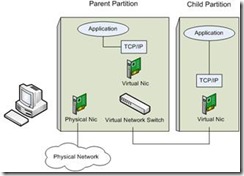
clip_image004

As stated by the above diagram when you bind a virtual network to a physical interface, a Virtual Network Adapter has been created on OS level. This virtual adapter has all the network binding like TCP/IP. After this operation the existing Network Adapter for the pNIC has only a binding for the HyperV Virtual Switch protocol.

In order to make OS level application work over the new created virtual adapter make sure appropriate tagging has been created also on host level.

IMPORTAT NOTE: Make sure you don’t create any Virtual Switch on the pNIC that is used for communication between SCVMM and Hyper-V host. Leave at least one NIC or Teamed Interface for this communication.

NIC Teaming and Tagging with HP NCU

HyperV has NO teaming capability at Hypervisor level like VmWare ESX/ESXi as mentioned in KB968703 (http://support.microsoft.com/kb/968703) :

Since Network Adapter Teaming is only provided by Hardware Vendors, Microsoft does not provide any support for this technology thru Microsoft Product Support Services. As a result, Microsoft may ask that you temporarily disable or remove Network Adapter Teaming software when troubleshooting issues where the teaming software is suspect.

If the problem is resolved by the removal of Network Adapter Teaming software, then further assistance must be obtained thru the Hardware Vendor.

This support has to be maintained at Hardware Level. For HP we used HP NCU for teaming purpose.

IMPORTANT NOTE : HP NCU have to be installed AFTER enabling HyperV role.

http://h20000.www2.hp.com/bc/docs/support/SupportManual/c01663264/c01663264.pdf

http://support.microsoft.com/kb/950792

OS Level Settings For Teaming+Tagging

In order to check HyperV with Teaming + tagging :

1. Windows 2008 Datacenter Core installed
2. HyperV role activated with necessary KB Updates.

http://support.microsoft.com/?kbid=950050
http://support.microsoft.com/?kbid=956589
http://support.microsoft.com/?kbid=956774

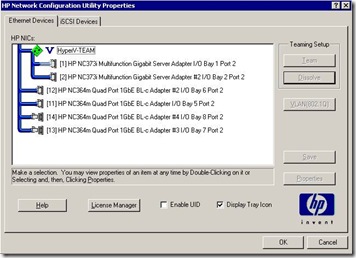
3. Using HpTeam Utility NFT based teaming has been configured.

4. NCU Installed together with Broadcom and Intel Drivers.
clip_image006

clip_image008

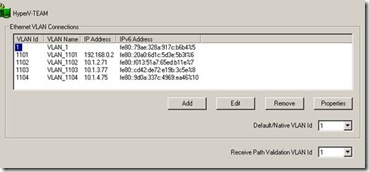
5. VLAN1,1101,1102,1103,1104 has been setup on the teamed interface.

clip_image010

Hyper-V Level Settings For Teaming+Tagging

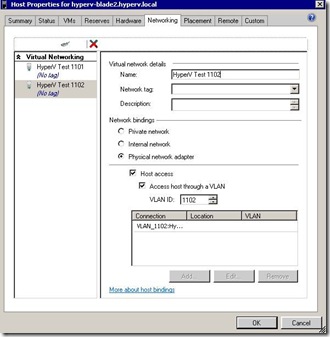
1. Create a Virtual Network on the Hyperv host for each VLAN and bind this network to each logical tagged interface that has been created by NCU.

clip_image012

NOTE : Access host through VLAN option enables the parent partition talk with that VLAN.

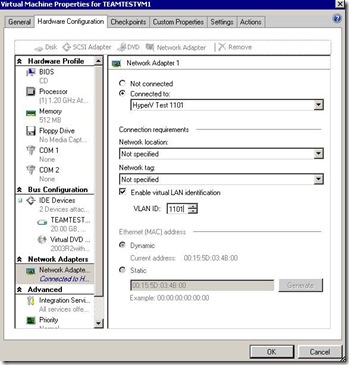
2. On the HOST created to VMs for testing. Each VM has been connected to different virtual switch as below

clip_image014

3. After setting tagging both on Host and VM level ping between different VLANs is possible. (The switch has been configured for interVLAN routing)

NIC Teaming with NCU and Tagging at HyperV Level

1. Windows 2008 Datacenter Core installed
2. HyperV role activated with necessary KB Updates

http://support.microsoft.com/?kbid=950050
http://support.microsoft.com/?kbid=956589
http://support.microsoft.com/?kbid=956774

3. NCU Installed together with Broadcom and Intel Drivers.
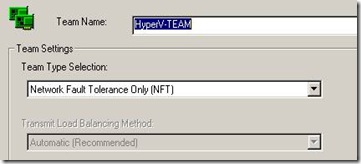
4. Only Teaming has been configured with NCU.
5. A virtual switch has been created at HyperV level and necessary tagging made for the Host Virtual Adapter.
6. Virtual guest machines has also configured with tagged vNICs.
7. Network connectivity between the VMs does NOT work.